Choose Midjourney to explore a visual style across many variations. Choose Ideogram if you need to place and edit the actual words on a poster. Try Image 3 AI if you want to start from a published prompt and compare a model or layout using the same brief.
| Compare | Midjourney | Ideogram | Image 3 AI |
|---|---|---|---|
| Start with | Prompt and visual references | Prompt or a design on Canvas | Prompt, published template, or supported reference |
| Best for | Exploring a consistent visual direction | Compositions where exact text matters | Repeating a poster or mockup setup from a reference prompt |
| Check first | Plan limits and image visibility | Spelling and placement in Canvas | Which model supports the chosen input and edit |
Keep Midjourney for style exploration
Start in the Imagine bar, compare a few results, then keep the visual direction that fits the project. Midjourney has a subscription model. If the project is confidential, check the visibility settings and plan before uploading references. Midjourney getting started · Plan comparison
Use Ideogram when the copy must be exact
Ideogram’s Canvas text tool lets you add and format the words directly. For an event poster, type the venue and date into the canvas, then verify them at the size you plan to publish. Ideogram Text Tool
Reuse a public setup before editing the whole prompt
In Image 3 AI, start from a published poster or packaging prompt. Keep the layout and aspect ratio, change just the subject, then compare the outputs. For a print piece, set final copy separately if a generated letter or number is wrong.
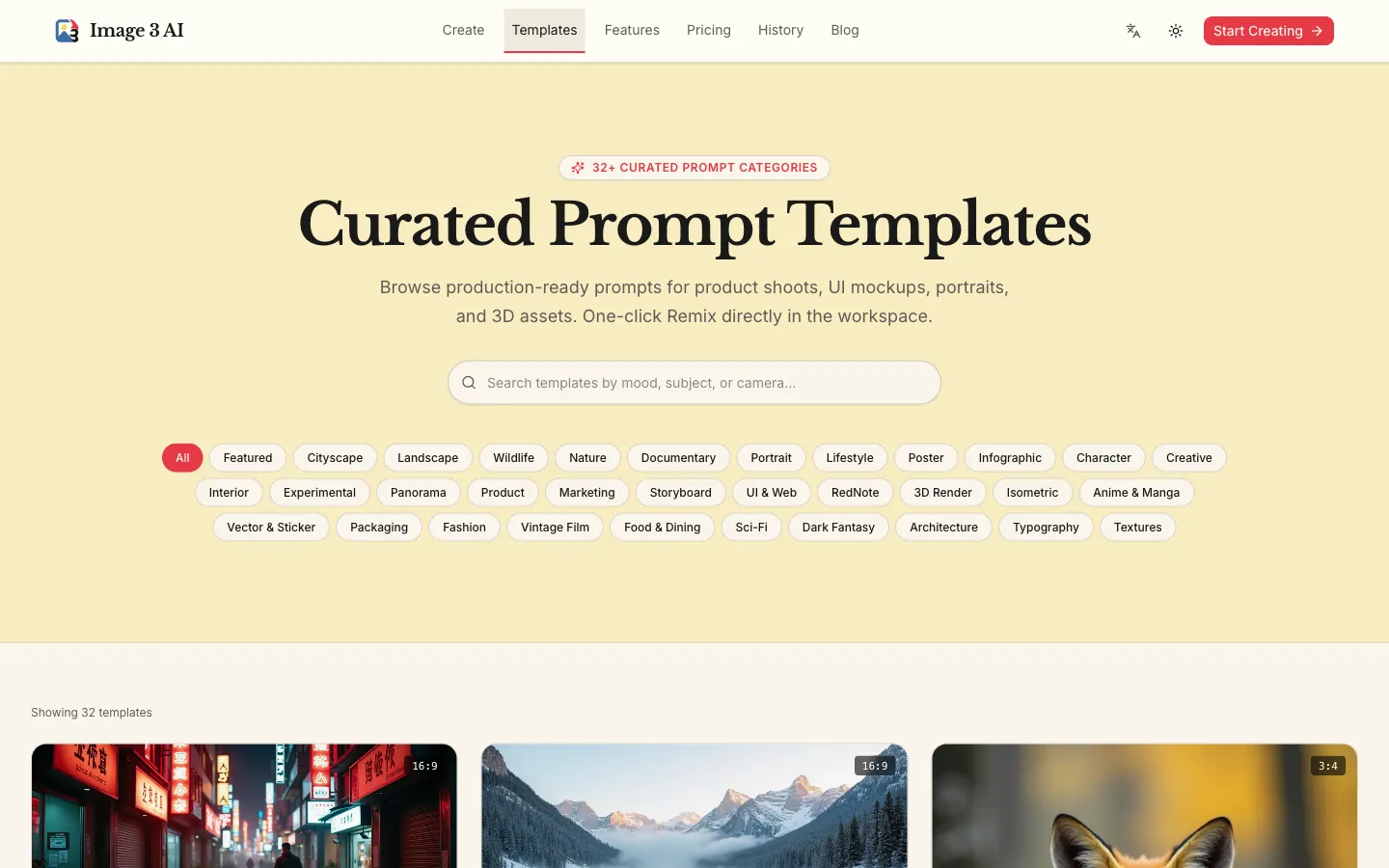
Our public prompt gallery. Open the Swiss poster example. We make Image 3 AI. The comparisons above use the other products’ linked documentation.
Try your image prompt
 Natalie Brooks